Registering Azure Local with Azure Arc using a Service Principal

Registering Azure Local (formerly known as Azure Stack HCI) with Azure has come leaps and bounds from the early days that I remember all too well. The process has now been simplified to a one-liner that will prompt you for Azure authentication (via Device Code) and will then start registering the node with Azure Arc to your desired resource group on your Azure subscription. Although that is great, the one thing I’m constantly asked for is guidance on how to do this via a Service Principal (app registration), or SPN for short, with the required permissions.

There are many reasons why someone would want to do this. Some of the common reasons have to deal with a company’s Azure security policy preventing them from using a device code to authenticate to Azure from an unmanaged host. Another reason may be simply because they are wanting to automate end-to-end a deployment of an Azure Local cluster (or multiple clusters).

If you find yourself in that scenario, the below will aim to provide you with some helpful code blocks that my team leverages to perform end-to-end Azure Local deployments for our validation efforts.

Simplifying and Understanding Dell’s Patch and Update Process for Azure Stack Hub (14G)

Introduction

When it comes to Dell’s Integrated System for Microsoft Azure Stack Hub, I often hear from customers that the Patch and Update process is confusing and difficult. This leads to customers to being up to date with their Microsoft Azure Stack Hub software updates and hotfixes while falling behind on their OEM hardware-vendor-provided updates. To help with this issue, I will attempt to break down, demystify, and provide clarity to the patch and update process for the Dell Integrated System for Microsoft Azure Stack Hub 14G.

To fully understand the Dell Patch and Update process for Azure Stack Hub, we must first identify all of the pieces involved in the process and how they are used. Here are the various packages and tools involved in this process:

  • Customer Toolkit zip file
  • Just Enough Administration (JEA) Registration zip file
  • OEM Extension Package zip file
  • Dell Patch and Update Tool
  • Azure Stack Hub software updates
  • Azure Stack Hub hotfixes

Network ATC – Overview

Introduction

Network ATC is an intent-based approach to network configuration that was introduced with Azure Stack HCI OS (21H2) and is the preferred network configuration method to use when deploying your Azure Stack HCI cluster.

Network ATC assists with the following:

Whether you are wanting to deploy a Non-Converged, Fully Converged, or Switchless network topology for your Azure Stack HCI cluster, Network ATC can be leveraged.

The following sections will help guide you through an Azure Stack HCI network deployment leveraging Network ATC while covering some of the parameters and configuration overrides you may need depending on your environment.

Live Migration Issue

Environment Details
OS: Azure Stack HCI (22H2)
Network Configuration: NetworkATC
Network Topology: Non-Converged

Recently encountered the following error while attempting to perform live migration of VMs in my cluster:

Live migration of 'Virtual Machine vm-base-A0640R33C02N01-001' failed.

Failed to get the network address for the destination node 'A0640R33C02N02': A cluster network is not available for this operation. (0x000013AB).

For some reason, valid cluster networks were excluded for migration. I was able to validate this running the following command:

$clusterResourceType = Get-ClusterResourceType -Name 'Virtual Machine'
Get-ClusterParameter -InputObject $clusterResourceType

This returned the following which explained why the VMs were unable to live migrate:

Object          Name                          Value
------          ----                          -----
Virtual Machine MigrationExcludeNetworks      b7afa7a2-ff32-4f8c-9a33-a5660c632e2b;00C578DA-B7C3-422F-9C58-CDE3757DE984;CBD466D2-3E53-4793-B3F0-460964E7B56A
Virtual Machine MigrationNetworkOrder         
Virtual Machine MoveTypeThreshold             1000
Virtual Machine ReportNetworkFailure          1
Virtual Machine MaxClusterShutdownTimeout     4294967295
Virtual Machine SkipMigrationDestinationCheck 0

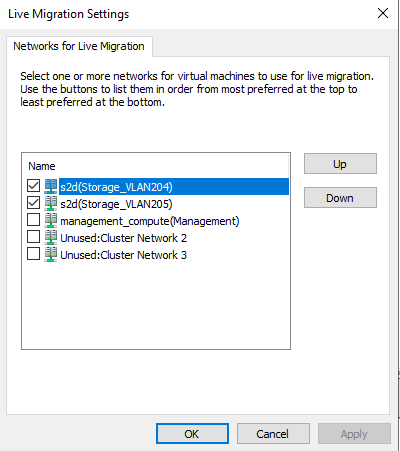
To modify the virtual machine live migration exclude networks or migration network order list, you can use either Set-VMMigrationNetwork cmdlet or the Failover Cluster Manager MMC snap-in. As a best practice, the networks that should be enabled for live migration are typically the non-routable private SMB networks:

Once the live migration networks have been set according, you can re-validate this on the host by running the earlier code block:

Object          Name                          Value
------          ----                          -----
Virtual Machine MigrationExcludeNetworks      b7afa7a2-ff32-4f8c-9a33-a5660c632e2b
Virtual Machine MigrationNetworkOrder         00C578DA-B7C3-422F-9C58-CDE3757DE984;CBD466D2-3E53-4793-B3F0-460964E7B56A
Virtual Machine MoveTypeThreshold             1000
Virtual Machine ReportNetworkFailure          1
Virtual Machine MaxClusterShutdownTimeout     4294967295
Virtual Machine SkipMigrationDestinationCheck 0

Azure Stack – Updating Microsoft Extensions via PowerShell

I recently came across an extremely useful PowerShell script to manage images and extensions within the Azure Stack marketplace thanks to this post by Kris Turner: https://kristopherjturner.com/2018/12/14/azure-stack-marketplace-management-powershell-script/

This script will download all current Microsoft virtual machine extensions from the marketplace. It also downloads Ubuntu Server and Windows Server images as well. Once all have been downloaded, it will compare versions and prompt you to remove older versions if desired.